


Have you ever found yourself staring at your smartphone at the end of a long day, watching the battery percentage plummet faster than you can say “charge me”? If so, you are not alone. In today’s hyper-connected world, our Android devices are constantly working overtime to keep us informed, entertained, and productive. Fortunately, Google and device manufacturers have built a powerful safety net into the operating system: the android energy saving mode. This feature isn’t just a quick fix; it’s a sophisticated tool designed to extend your phone’s life by intelligently throttling background processes and limiting visual effects. Whether you are a casual user trying to survive a long commute or a power user navigating a busy day without a charger in sight, understanding how to leverage this built-in utility can be a game-changer. Let’s dive deep into the mechanics, benefits, and best practices of Android’s power management systems.
Understanding Android Energy Saving Mode
When you activate the android energy saving mode, your phone shifts from a performance-driven state to a conservation-focused state. The core philosophy behind this feature is straightforward: reduce the power consumption of non-essential hardware and software components without completely disconnecting you from your device’s core functionality. Unlike simply dimming the screen or closing a few apps manually, the battery saver android system operates at the operating system level. It dynamically adjusts CPU speeds, limits background data synchronization, and reduces or eliminates certain visual animations. The goal is to squeeze every last drop of juice out of your remaining charge. Many users mistakenly believe that this feature only kicks in when the battery hits the dreaded five percent, but modern iterations allow you to turn it on proactively at any battery level. This proactive approach is crucial for users who rely on their phones for essential communication, navigation, or work tasks throughout the day. By taking control of your power profile, you become the governor of your own battery health.
How It Actually Works Under the Hood
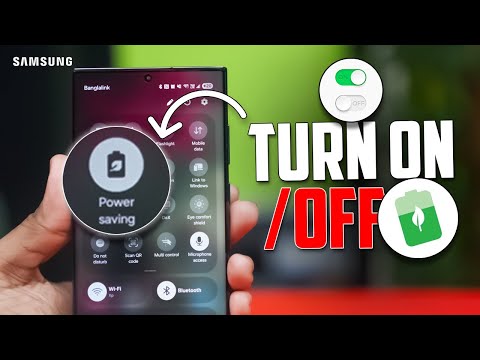
To truly appreciate the android battery optimization capabilities, you need to understand what happens when you flip the switch. When power saving mode is engaged, the operating system implements a series of aggressive yet calculated restrictions. First, the CPU clock speed is reduced, which lowers the overall processing power but significantly cuts down on energy draw. Second, background synchronization for apps like email, social media, and weather widgets is paused or restricted to manual refresh only. This means your phone stops constantly pinging servers for new data, which is one of the most significant battery drain culprits. Additionally, the system reduces or disables location services for non-critical apps, dims the screen brightness beyond what you might manually set, and turns off always-on display features if your device supports them. For anyone asking how to optimize battery life android, understanding these underlying mechanics is the first step toward smarter usage habits and more efficient device management.
Key Features and Restrictions of Power Saving Mode

While the primary goal of power saving mode android is to extend battery life, the trade-offs are real. The system balances conservation with usability, but you will notice specific changes in how your device operates. Here is a breakdown of what you can expect when you activate these settings:
- Background Data Restriction: Apps cannot fetch data in the background, meaning notifications might be delayed until you actively open the app.
- Reduced Visual Effects: Animations are minimized or disabled, which not only saves power but also makes the device feel snappier despite the lower CPU speed.
- Location Services Limitation: GPS and location-based services are restricted for apps that do not have an active foreground session.
- Synchronization Pauses: Email, cloud storage, and social media sync are paused, requiring manual refreshing.
- Performance Throttling: The processor is capped at a lower frequency to reduce power consumption.
These restrictions are designed to prioritize essential functions like receiving calls and texts while putting non-critical processes to sleep. If you rely heavily on real-time notifications, you might find these limitations frustrating, but for critical battery preservation, they are highly effective and necessary measures to keep your phone alive during demanding situations.
Android Energy Saving Mode vs. Ultra Battery Saver
Most modern Android smartphones offer two distinct tiers of battery conservation: the standard android energy saving mode and the more aggressive Ultra Battery Saver (or Extreme Battery Saver on some devices). Understanding the difference between these two modes is critical for managing your phone’s longevity throughout the day. The standard mode allows you to continue using your phone relatively normally while quietly optimizing background processes. Ultra Battery Saver, on the other hand, takes a much more restrictive approach. It completely suspends background data and restricts your device to essential apps only—typically phone, messages, and contacts. When you compare these two approaches, the choice depends entirely on your immediate needs.
| Feature | Standard Power Saving Mode | Ultra Battery Saver |
| Background Data | Restricted but not completely halted | Fully suspended |
| Visual Effects | Reduced animations | Removed entirely |
| App Access | All apps remain functional | Only essential apps allowed |
| Location Services | Restricted for non-critical apps | Restricted to core system functions |
| Overall Experience | Near-normal with slight delays | Drastically limited, basic phone functions only |
Advanced Tips for Maximizing Battery Life
1. Leverage Adaptive Battery Features
Modern Android devices come equipped with Adaptive Battery, a machine learning feature that learns your app usage patterns over time. By restricting battery consumption to the apps you use most, android battery optimization becomes almost autonomous. Ensure this feature is enabled in your device settings to maximize the benefits of power saving mode without manual intervention or constant monitoring.
2. Manage Location Settings Manually
Even with power saving mode android active, manually adjusting location settings can provide an extra boost. Instead of allowing apps to access your location “Always,” change the permission to “While Using the App.” This minor adjustment drastically reduces the number of times your GPS radio wakes up the processor, keeping your battery drain to a minimum and preserving charge for essential tasks.
3. Identify and Uninstall Battery Hogs
Sometimes, the best way to extend battery life is to remove the source of the problem. Navigate to your battery settings to see which apps are consuming the most power. If you notice social media or streaming apps draining your battery excessively, consider uninstalling them or restricting their background activity manually. This targeted approach complements the broader restrictions of the energy saving mode and provides a customized experience.
4. Use Dark Mode and OLED Efficiency
If your device features an OLED or AMOLED display, using dark mode can significantly reduce power consumption. OLED screens only light up individual pixels; black pixels are essentially turned off. Combining dark mode with the android energy saving mode creates a powerful synergy that keeps your screen dimmer while saving hardware-level power and reducing the strain on your battery cells.

Frequently Asked Questions
How to turn on battery saver on android?
You can enable the android energy saving mode by swiping down from the top of your screen to access the quick settings panel and tapping the battery saver icon. Alternatively, you can navigate to Settings > Battery > Battery Saver and toggle the switch on. You can also set it to turn on automatically at a specific battery percentage through the settings menu.
Does battery saver reduce phone performance?
Yes, activating battery saver does reduce phone performance to some degree. The feature limits CPU speed and restricts background processes to conserve power. While you may notice slight delays when opening apps or switching between tasks, the trade-off is a significantly extended battery life, which is often worth the minor reduction in speed for most users on the go.
What happens when you turn on power saving mode android?
When you turn on power saving mode android, the device immediately begins throttling background data, reducing screen brightness, and disabling or limiting location services for non-essential apps. Some visual animations may also be removed, and syncing for emails and social media is paused until you manually refresh or deactivate the mode entirely.
How to extend android battery life beyond just power saving?
To extend android battery life, you should combine power saving mode with other best practices. Reduce your screen timeout, use dark mode on OLED screens, turn off Wi-Fi and Bluetooth when not in use, and uninstall apps you do not regularly use. Managing push notifications and restricting background activity for heavy apps also helps maintain a healthy charge throughout the day.
Is it bad to keep battery saver on all the time?
While it is not inherently harmful to keep the battery saver on all the time, it is generally unnecessary and can be inconvenient. Constant use restricts app functionality, delays notifications, and limits access to features like GPS and high-performance modes. It is best to use it strategically when your battery is low or when you know you will not have access to a charger for an extended period.
Conclusion
The android energy saving mode is an indispensable tool for anyone who relies on their smartphone but finds themselves far from a wall outlet. By understanding how the feature works, the trade-offs it involves, and the advanced techniques you can pair with it, you can transform your device from a battery anxiety trigger into a reliable daily companion. From standard power saving mode to Ultra Battery Saver, Android offers a spectrum of options to fit every situation. Embrace these built-in utilities, manage your background apps intelligently, and take control of your device’s battery drain. With the right knowledge and a few proactive adjustments, you can ensure that your phone stays powered up exactly when you need it most.